

More agents now run their day from a chat window. They ask ChatGPT to draft a listing description, ask Claude to sum up a long inspection report, or ask Grok what rates did this week. Then they ask the question that matters most, "Who should I call today?", and the AI has no idea. It has never seen their CRM.
This guide covers how to give ChatGPT, Claude, Grok and other AI apps safe access to your real estate data: your contacts, deals, tasks, email, texts and calls. It also covers why the shape of that data decides how good the answers are.
Why ChatGPT Does Not Know Your Business Yet
An AI app knows what it learned in training and what you hand it in the chat. Your pipeline is in neither place. It sits in your CRM, your inbox, your phone and your transaction software, and most of those were never built to talk to an AI.
Agents get around this in three ways today:
- Paste or upload an export. Export contacts to a CSV and drop it in the chat. It works for one question. The file is out of date by the next showing, it has no texts or call notes, and your whole client list now sits in a chat log.
- Use your CRM's own connector, if it has one. Some CRMs now offer one, and we compare them in our guide to the best real estate MCP servers. It can see what that one tool holds, but not the texts on your phone, the email in your inbox, or the deal in your transaction software.
- Connect a data layer that holds all of it. One connector that reads your contacts, deals, tasks and conversations together, live, with your permission settings. This is the approach the rest of this guide covers.
What MCP Is, in Plain Terms
MCP, the Model Context Protocol, is a shared standard for plugging a data source into an AI app. Anthropic published it in 2024, and Claude, ChatGPT and Grok now accept MCP connectors. You do not need to code anything. A connector is an address you paste into the AI app's settings. The app then signs you in to the service behind it, and from then on it can call that service's tools: "find contacts", "read this deal", "add a task".
The protocol only moves requests back and forth. What the AI can do with your business depends on what sits behind the address.
Why the Shape of Your Data Matters
Ask "What did Priya say on our last call, and is her deal on track?" To answer, the AI has to know that Priya is a contact, that she has a call from September 28, that she is the buyer on a transaction, and that the transaction has two open tasks. Those are four kinds of record and three links between them.
A pile of exported rows cannot answer that. A list of linked records can. Engineers call that list of record types, and the links between them, an ontology. For a real estate business it looks like this:
- Contacts and leads: the people you work with, where each came from, their stage and type.
- Transactions: each deal, with its stage, dates, people and commission.
- Tasks: what needs doing, by whom, and by when, tied to a contact or a deal.
- Conversations: email threads, texts and calls, each tied to the contact it was with.
With that structure in place, the AI does not guess. It asks for the list of record types, looks up the contact, follows the link to her calls, follows another link to her deal, and answers from the records. It also helps that the same set of records holds data from every source. A contact that came in from Follow Up Boss, emailed you through Gmail and texted you last week is still one contact.
How RealAnalytica's Ontology Layer Works
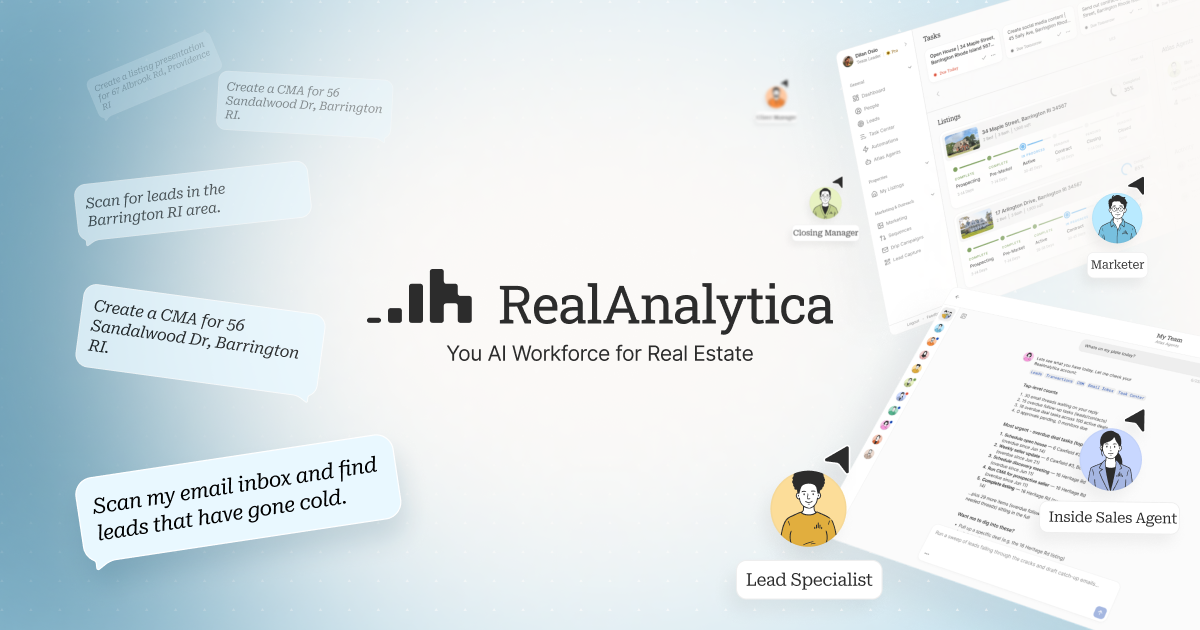
RealAnalytica is a CRM and AI platform for agents, teams and brokerages. Under the screens sits one set of linked records, and every part of the product reads it: the CRM, the deal pipeline, Atlas Agents (our AI employees), and now any outside AI app you connect.
Where the records come from
- Your CRM, synced in. Each record keeps the name of the tool it came from.
- Your Gmail or Outlook inbox and your calendar.
- Your texts and calls, when they run through RealAnalytica.
- Your transactions, including deals synced from dotloop.
- The work you and your team do inside RealAnalytica.
What a connected AI app can read
The connector gives the AI a small set of tools that work across every record type: list the record types, describe one, find records with filters, open one record, follow a link from one record to another, and search everything by words. A new record type needs no new tools, so the AI reads a short, stable list.
Behind those tools, RealAnalytica runs the same access checks as the app. The AI sees exactly what you would see when you sign in, including contacts your team shares with you, and nothing you could not open yourself.
What it can do, if you allow it
Each action is its own tool: send an email as you, send a text as you, schedule an event, add or complete a task, add a note to a contact. Every one starts switched off. If you tick one, the AI app can use it without asking you each time, so tick only what you want it doing. Texts go through the same checks as any text you send from RealAnalytica.
How to Connect Your Data to Claude, ChatGPT or Grok
You need a paid RealAnalytica plan. Setup takes about a minute.
- Copy the address:
https://www.realanalytica.com/mcp. It is the same for everyone. Your sign-in decides whose records it reads. - Add it to your AI app.
- Claude: Settings, then Connectors, then Add custom connector. Paste the address.
- ChatGPT: open Settings and find the option to add a custom connector or app. Paste the address. Menu names change often, and some ChatGPT plans need developer mode switched on first.
- Grok: open grok.com/connectors, choose New Connector, then Custom, and paste the address.
- Other apps: any AI app that takes a custom MCP connector can connect. RealAnalytica warns you on the sign-in screen when it does not know the app.
- Sign in and choose. Sign in to RealAnalytica, untick any record type the app should not read, tick only the actions you want, and press Allow.
Every app you connect shows up on your Your data page in RealAnalytica. You can switch a box off there, or disconnect the app, at any time.
What to Ask Once You Are Connected
- "Who have I not talked to in a month?"
- "What closes this month, and what is still open on each deal?"
- "What did Priya say on our last call?"
- "What have Dana and I said about the inspection?"
- "Which of my deals have no task due this week?"
- "Add a task to call Dana on Friday." (only if you allowed tasks)
Keep Your Clients' Data Safe
Your contacts trust you with their phone numbers, their budgets and their plans. Before you connect any tool to an AI app, check four things:
- It signs you in rather than asking for a password or key you paste into the chat.
- You choose what it reads, one record type at a time.
- Actions are off until you turn them on, one by one.
- You can see and cut off every connected app from one page.
Also check your brokerage's policy on AI tools, and your AI app's own settings for how it stores chats and whether it trains on them.
MLS data has rules of its own. The connector does not serve it, and our guide on whether ChatGPT or Claude can use MLS data explains what MLSs allow.
The Bottom Line
ChatGPT, Claude and Grok are only as useful as the records you give them. A CSV upload answers one question. A connector into a set of linked records answers the next hundred, stays current, and keeps you in control of what the AI can see and do. If you want your CRM, inbox, texts, calls and deals in one place that any AI app can read, see how the RealAnalytica connector works. RealAnalytica starts with a 7-day free trial (card required), or you can book a demo.
Frequently Asked Questions
Can I connect my real estate CRM to ChatGPT?
Yes. ChatGPT accepts MCP connectors, which are addresses you paste into its connector settings. If your CRM offers one, you can connect it directly. RealAnalytica offers one connector that covers your synced CRM contacts plus your deals, tasks, email, texts and calls, at https://www.realanalytica.com/mcp, on any paid plan.
How do I connect my real estate data to Claude?
In Claude, open Settings, then Connectors, then Add custom connector. Paste the connector address, for example https://www.realanalytica.com/mcp, sign in to RealAnalytica, choose what Claude may read and do, and press Allow.
Does it work with Grok or Meta Muse?
Grok takes custom MCP connectors at grok.com/connectors, so you can add the RealAnalytica address there. Meta's Muse was still changing how it handles outside connectors in late 2026. Any app that takes a custom MCP connector can connect, and RealAnalytica warns you on the sign-in screen when it does not know the app.
Do I need to know how to code to connect my data to ChatGPT or Claude?
No. A connector is an address you paste into the AI app's connector settings. You sign in, choose what the app may read and do, and press Allow. Setup takes about a minute.
What is MCP for realtors?
MCP, the Model Context Protocol, is a standard way to plug a data source into an AI app like ChatGPT, Claude or Grok. For a realtor, it means the AI can read your CRM, deals and conversations live, with your permission, instead of you pasting exports into the chat.
Is it safe to give ChatGPT or Claude access to my clients' data?
It can be, if the connector signs you in, lets you choose what it reads, keeps actions off until you turn them on, and lets you disconnect at any time. RealAnalytica's connector does all four, and it runs the same access checks as the app, so the AI sees only what you could see yourself. Check your brokerage's AI policy and your AI app's chat storage settings too.
Can ChatGPT or Claude send texts and emails to my clients?
Only if you allow it. With RealAnalytica, sending email, sending texts, scheduling events, adding tasks and adding notes are each their own switch, and all of them start off. Once you tick one, the AI app can use it without asking you each time, so turn on only the ones you want.